> For the complete documentation index, see [llms.txt](https://docs.v-nova.com/technologies/llms.txt). Markdown versions of documentation pages are available by appending `.md` to page URLs; this page is available as [Markdown](https://docs.v-nova.com/technologies/v-nova.presenz/v-nova-presenz-documentation/render-scale.md).
# Render scale
**Size matters in VR**
When you’re in Virtual Reality, the size of objects around you can greatly affect your perception of the virtual world. Your eyes perceive depth and scale, so if the virtual world is too big, you will feel like a Lilliputian, and if it is too small, you will feel like a giant.
**The Avatar in the UI**
To help you understand how big or small you will feel in the virtual world, we show you a representation of the VR user as an avatar in the interface. This will give you a clear idea of the size of objects around you.
**The render scale**
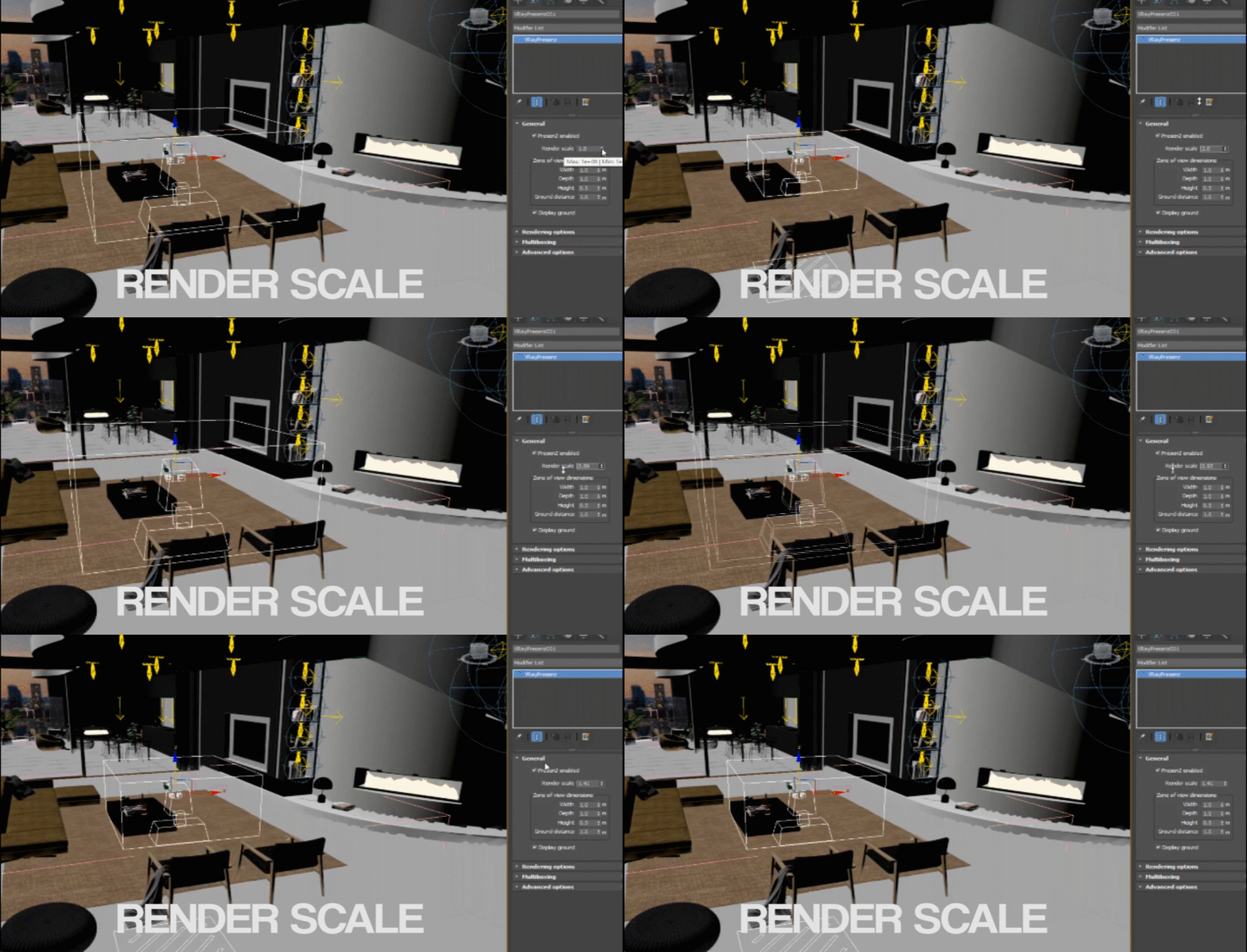
The render scale lets you scale the entire 3D scene during the PresenZ render. When you increase the render scale, it makes the virtual world appear larger in VR. For example, if you set the render scale to 2.0, the scene will appear twice as big in VR. \
But we are not really scaling or modifying the 3D scene in your software, because that will create a lot of problems. So to represent this change of scale, we modify both the visualization of the ZOV and the avatar in the UI.\
In the previous example, with a render scale of 2, this will shrink the viewer avatar by half in UI.\
And indeed, if you envision yourself wearing the VR headset and being the size of the UI avatar, the scene around you will be two times bigger.
Notice in the animated GIF below how both the avatar and the Zone Of View scale while changing the Render Scale.
{% hint style="info" %}
*Note: It’s important to understand that the size of the zone of view is always in “real world” scale, so if it’s a 1 x 1 x 1 meter cube, the VR user will be able to move around freely in that 1 x 1 x 1 meter space. Changing the render scale won't modify that; it will just change the scale of the 3D scene rendered.*
{% endhint %}
**When to use the render scale**
The render scale is a powerful tool, especially when you’re working with virtual scenes that were not modeled using real-world units or need to be converted to meters for the PresenZ player.
Render scale can also be used as an artistic tool to make the VR user feel like a Lilliputian or a Giant
**Unit conversion:**
PresenZ will consider the scene as being in centimeters. So if render scale is set to 1.0, one unit in your authoring tool = one centimeter when seen in VR by the user.
If you are using the **imperial units** system, you will have to adjust your render scale accordingly. The conversion would be 1 inch = 2.54 centimeters. So you should set the render scale to 2.54
\
---
# Agent Instructions
This documentation is published with GitBook. GitBook is the documentation platform designed so that both humans and AI agents can read, navigate, and reason over technical content effectively. Learn more at gitbook.com.
## Querying This Documentation
If you need additional information that is not directly available in this page, you can query the documentation by asking a question.
Perform an HTTP GET request on the following URL with the `ask` and `goal` query parameters:
```
GET https://docs.v-nova.com/technologies/v-nova.presenz/v-nova-presenz-documentation/render-scale.md?ask=&goal=
```
`ask` is the immediate question: it should be specific, self-contained, and written in natural language.
`goal` is what the user is ultimately trying to achieve, the reason they need the answer. Sharing it helps GitBook give you a better, more relevant answer. A goal is most helpful when it describes the outcome the user wants rather than restating the question. For example, with `ask=how do I create an API token`, a goal like `automate deployments from our CI pipeline` lets GitBook tailor the answer to that use case.
The response will contain a direct answer to the question and relevant excerpts and sources from the documentation.
Use this mechanism when the answer is not explicitly present in the current page, you need clarification or additional context, or you want to retrieve related documentation sections.