

Getting Started with V-Nova PresenZ Maya and Arnold
A brief and basic starting tutorial with some instruction on how to get started with V-Nova PresentZ in Maya and Arnold
V-Nova PresenZ Maya and Arnold
This section is broken up into key categories that may require a bit more explanation. along with a hands-on tutorial to show how we deal with this in our software. Please read through the PresenZ Plug-In Maya and Arnold section to go through the addon and shelf tools before proceeding.
Getting Started with V-Nova PresenZ Maya and Arnold
Render Scale

Render scale is the most basic requirement for V-Nova PresenZ; it controls the feel of the whole scene and will allow us to feel small or large in that environment. Setting this scale to the correct size to match the human in VR will mean you can interact and move in the environment accurately.
You should use the Render Scale attribute to match the scene scale. This can be done by typing in a value or using the "Ctrl + left mouse " to drag the value
Using the incorrect scale can negatively effect you render and increase the number of blocs dramatically increasing render time.


Using the Zone of view dimensions is not advised, but these can be used to enlarge or minimise the available head movement inside VR. This attribute greatly increases render time and the amount of data created. So any editing should be limited.
You should always try to keep the avatar at the center of the Zone of View to the correct human scale in your scene, as shown below.

Size matters in VR
When you’re in Virtual Reality, the size of objects around you can greatly affect your perception of the virtual world. Your eyes perceive depth and scale, so if the virtual world is too big, you will feel like a Lilliputian, and if it is too small, you will feel like a giant.
The Avatar in the UI
To help you understand how big or small you will feel in the virtual world, we show you a representation of the VR user as an avatar in the interface. This will give you a clear idea of the size of objects around you.
The render scale
The render scale lets you scale the entire 3D scene during the PresenZ render. When you increase the render scale, it makes the virtual world appear larger in VR. For example, if you set the render scale to 2.0, the scene will appear twice as big in VR. But we are not really scaling or modifying the 3D scene in your software, because that will create a lot of problems. So to represent this change of scale, we modify both the visualization of the ZOV and the avatar in the UI. In the previous example, with a render scale of 2, this will shrink the viewer avatar by half in UI. And indeed, if you envision yourself wearing the VR headset and being the size of the UI avatar, the scene around you will be two times bigger.
Notice in the animated GIF below how both the avatar and the Zone Of View scale while changing the Render Scale.
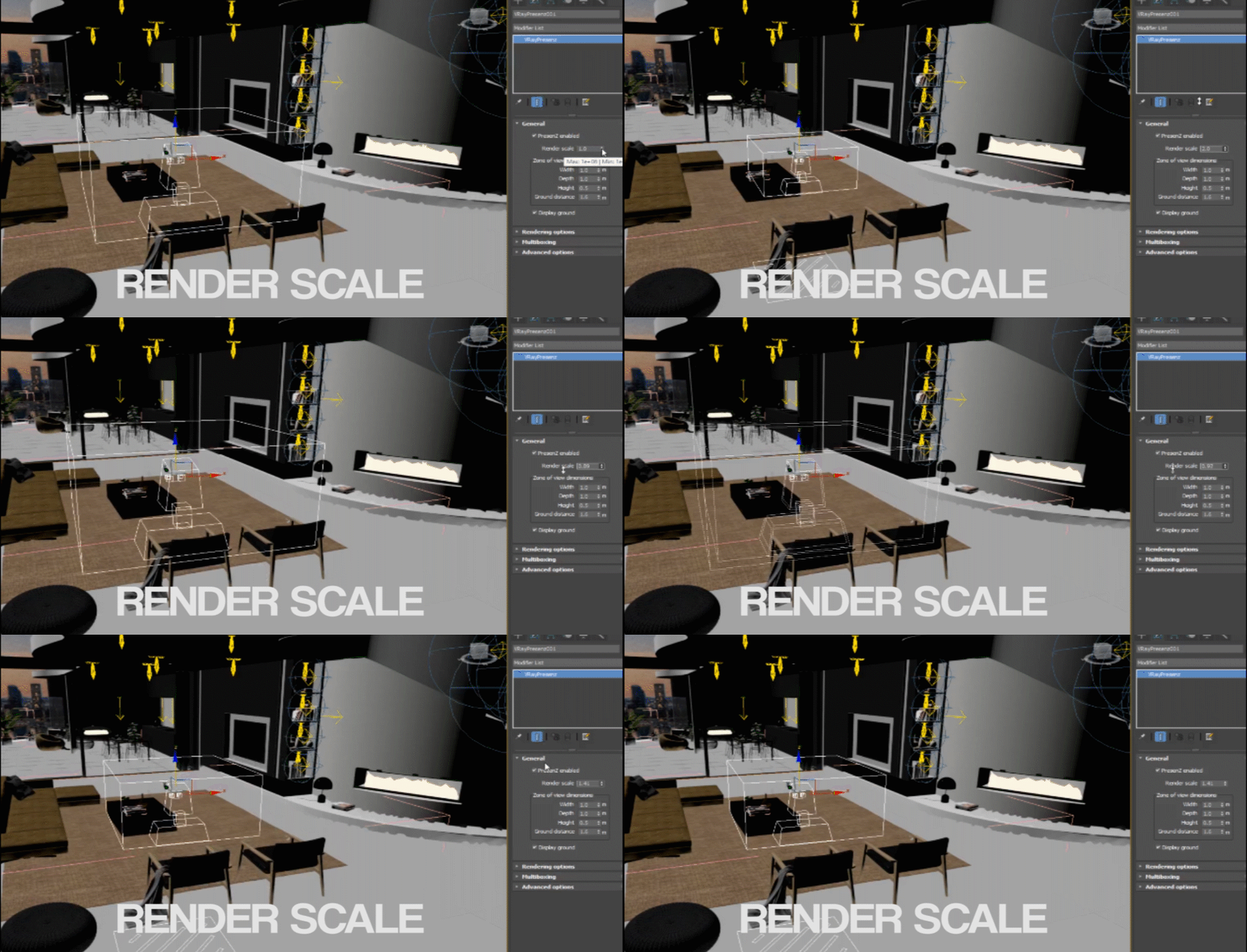
Note: It’s important to understand that the size of the zone of view is always in “real world” scale, so if it’s a 1 x 1 x 1 meter cube, the VR user will be able to move around freely in that 1 x 1 x 1 meter space. Changing the render scale won't modify that; it will just change the scale of the 3D scene rendered.
When to use the render scale
The render scale is a powerful tool, especially when you’re working with virtual scenes that were not modeled using real-world units or need to be converted to meters for the PresenZ player.
Render scale can also be used as an artistic tool to make the VR user feel like a Lilliputian or a Giant
Unit conversion:
PresenZ will consider the scene as being in centimeters. So if render scale is set to 1.0, one unit in your authoring tool = one centimeter when seen in VR by the user.
If you are using the imperial units system, you will have to adjust your render scale accordingly. The conversion would be 1 inch = 2.54 centimeters. So you should set the render scale to 2.54
Resolution and Format
Rendering resolution
Currently in our Authoring released Plugins, V-Nova PresenZ imposes some limits in the choice of resolutions and aspect ratios we can use to render.
Our volumetric image format (.PRZ) is able to handle image resolution going from (6048,4032) to (288, 192). Usually we render at (3024,2016), which corresponds to around 4K to 6K, equivalent to a 360 image
The PresenZ camera uses a cubeMap3x2 projection, which brings us to lock the aspect ratio to 1.5
For technical reasons, mostly linked to the underscanning system, the resolution must be a multiple of 24.
To summarize, the rendering resolution must be a multiple of 3x24=72 in width and 2x24=48 in height, with a width-to-height ratio of 1.5, and must be within the range of (6048, 4032) to (288, 192). Here are some examples of supported resolutions:
(288 ,192 ) Minimum
4 x(72)
4 x(72x3/2)
(720 ,480 )
10x(72)
10x(72x3/2)
(1512,1008) Good for Test
21x(72)
21x48
(2160,1440)
30x(72)
30x(72x3/2)
(3024,2016) Default
42x(72)
42x(72x3/2)
(6048,4032)
84x(72)
84x(72x3/2)
Note: Through their graphical interface, our authoring plugins will help you to set a compatible resolution.
 Warning: Unless you really know what you are doing, we do not recommend going higher than the default: 3024 * 2016
Formats and file types
V-Nova PresenZ utilises a variety of file formats to both create files in uncompressed format for use in comp and in compressed format for viewing in a player. This is a quick run-through of the common formats that you will see, along with an image to show the standard file structure created when you render from Maya.

File formats in V-Nova PresenZ
.przDetect
Detect files are generated in the first section of the two-phase render process in V-Nova PresenZ. They contain information on what is visible from inside the Zone Of View. This is an essential part of the render and limits the information that is rendered in each block. It contains info on geometry but no color data or any aov’s. It can still be inspected inside Houdini with the V-Nova PresenZ nodes. And it is used for the second phase: the render phase.
2d equivalent: none, this file is a technical intermediary file
.przRender
This is an uncompressed file format used for the compositing phase of V-Nova PresenZ. It contains all the aov’s and colour values useful in the compositing process. This is a large file that is not suitable for viewing in playback.
2d equivalent: “.exr” or ".raw"
.prz = these files are usually only compressed in lossless. They are PresenZ Image generated by the Merge/Prz_Maker from the .przRender file. It’s not a massive compression on the file, but it can be used in the viewer or player to have effective playback.
2d equivalent: “.png”
.przShot
A lossy but qualitative compression of a sequence of .prz files. This is much more compact and convenient to carry around. It can be directly played back by the player.
2d equivalent: a ".mov" corresponding to one shot of the movie.
.przToc
A file that defines the PresenZ movie, pointing to the different shots, audio, background, and other attributes specific to PresenZ. The TOC stands for Table Of Content. It is usually generated by the Sequencer, the equivalent of a Video Editing software.
2d equivalent: ".edl"
Motion Vectors

Motion Vectors are used by V-Nova PresenZ to interpolate / smooth transitions between frames in VR. Setting the values correctly to achieve this is vital. To get Motion Vectors, we need to set the scene to create motion blur, this give are points there correct data so that V-Nova PresenZ can interpolate.

We can then use the player to check these motion Vectors by using the speed function inside the playback terminal.

Motion vectors and animation

Motion vectors are used by V-Nova PresenZ to smooth the motion of animated objects in the volumetric image at display time. They hold local information about the motion of each point for each frame. The motion vectors can be computed by most rendering engines and can be incorporated into a compositing software.
V-Nova PresenZ requires a specific type of motion vector that describes the trajectory of objects from the current frame to the next frame. Basically for each point: motion vector(frame) = position (frame+1) - position (frame)

Note: Our authoring plugins can detect when the rendering is in an animation context and will prompt the user to apply the motion vector settings automatically.
Warning: Attention, don't confuse the motion vector concept with the "velocity" in simulation dynamics. The motion vector we are looking for is the vector pointing to the position at the next frame , while the velocity is the current speed of the object at the beginning of the frame simulated before any external force is applied (gravity, wind, etc).
Tagging Transparency
Rendering Transparent objects in V-Nova PresenZ by default will bake the transparent image from behind the object onto the surface. This reduces render time and, in most cases, will be unnoticeable. But for objects or surfaces that don't have much distortion, this can break emersion and cause a poster-type effect.
To deal with this, you can use the Glass tag under the Tagging Manager 

You can apply tags by simply selecting the geometry and hitting "Refresh" in the Tagging Manager
Now simply left-click in the Glass box and hit "Apply changes."
Now, during the detection phase of the render, V-Nova PresenZ will scan what is behind the object and give accurate details for anything visible.
Transparencies
Standard transparency shading is "baked" on the surface
By default, V-Nova PresenZ will not go through a transparent object in the detection phase. This will end up baking what is seen through the transparent object onto its surface. For instance, a window surface will feel like a "poster" of the background.
By default, the baked on the surface combined with Deep reflection/ stereo works quite well for complex refractive objects like the water drop, a frosted window, a vase, etc., because the objects’ curvature distorts most of the refractions. It also works well for faraway windows.


When to use Glass tagging
But for close and flat transparent surfaces like a nearby windows, this poster effect will be weird. We need to have parallax on what is seen behind the window. Tagging the transparent surface as "Glass" will solve the issue. With this tag, V-Nova PresenZ will keep the reflection component of the tagged surface and start to scan and capture what is behind it. This cancels the poster effect because PresenZ then captures in 3D what is behind the glass-tagged surface in the 3D scene.
Some examples below where glass tagging the nearby transparent objects is mandatory


Tagging Chaotic Objects
Chaotic objects are any objects that have a complex geometric shape that may need multiple scans (Detection phase) to correctly gather all the information for the Zone of View. In other words, if we move inside the ZOV, do we see more or less geo, is some of it occluded or made visible, and therefore must be scanned to correctly render.
This process can be affected by many of the parameters inside the render scale and the ZOV scale, but is most predominant with Vegetation and Groom. we there for have the Chaotic tag inside the Tagging manager so that we can reduce the amount of information gathered without affecting the render quality.
The way to create a chaotic tag is by using Tagging Manager

This will compress the amount of data created during the detection phase, reducing the blocks required for accurate rendering and reducing render time, without affecting render quality.


If you’re working on a scene with complex geometry, such as vegetation or hair, you can speed up your rendering process hugely by using the PresenZ Chaotic tag. This tag reduces the number of unnecessary points rendered for complex objects, decreasing the overall render time and the size of the final .prz file
How does it work?
To achieve this, V-Nova PresenZ divides the space around the Zone of View into smaller volumes corresponding to 8x8 pixel patches, with a variable depth. As the distance from the center increases, the slices become deeper, as we don’t require as much detail further away from the ZOV. This is a top view representing the space partition:

For each patch, V-Nova PresenZ computes a maximum of 8x8 pixels (64 pixels) instead of the original complexity of your objects. Without this process, leaves or grass could generate hundreds of points for the same patch volume. This approach can significantly reduce the complexity of your scene and speed up rendering.
We provide a UI to tag as "chaotic" selected objects in your 3D scene.
Atmospheric rendering
Smoke, fire and atmospheric rendering
V-Nova PresenZ does support Smoke, Fire, atmospheric and more broadly "volumetric" rendering from Maya Arnold. But it is important to remember that a volume that takes up a large space will greatly increase the number of points and the amount of data in the scene. So this will take up more blocks in the render. As such, you should limit the amount of space used for atmospheric volumes by using the aiAtmosphereVolume shader on a geometry. As seen below

You should avoid the atmosphere attribute inside Arnold, as this will create points throughout the scene and will affect your renders, as mentioned. It will also create issues where you will need to render inside the Zone Of View.

When rendering any volume, it is important to limit the number of effective Lights and improve the samples of the render inside of Arnold

Here is a simple look at render settings that will work for testing

Clipping Sphere
The clipping Sphere tool is a useful addition to PresenZ and allows artists to start learning the concept of layers. It allows us to render only what is visible inside the sphere, which will allow us to use are 3 part method of layering. We tend to use 3 main layers.
Foreground ( animated ): this is any animated characters or the main animated feature of the scene
Background ( static ), this is for environments that would be static but are close enough to require details to be rendered
360-degree image (Video at infinity), this is the background sky dome or surrounding image
The process to get this working is very simple.
Start by enabling the clipping sphere inside the PresenZNode

Scale the sphere to contain the selected geo you want to separate, be careful to include the interaction with the environment, e.g., shadows

Use the "Mode" attribute to render both inside and outside separately.


You can then use the player to layer the image to view it correctly, as shown below.


Note: while we advise the three layered setup for simplicity and for use in the V-Nova Presenz Player and Sequencer, this is not the only way to create layers and it can be useful to know that any regular layer setup can be used to create simplified layers and then have them merged in the comp stage. for more information on this you can check the Getting Started with V-Nova PresenZ Houdini.
The clipping sphere
The clipping sphere feature in V-Nova PresenZ allows you to render only a specific part of a 3D scene. This can be useful if you’ve made changes to a particular object and want to see how those changes have affected it without having to render the entire scene. Instead, you can place a clipping sphere around the object and render only that part. This is similar to doing a cropped render in 2D.
In the rendered image, everything outside of the clipping sphere is not visible, giving the impression that the object is isolated in space. In some cases, you might want to do the opposite and render everything outside of the sphere, creating a hole in the final render.
This technique can also be used for animations where a large part of the scene is static and unaffected by the animation (such as shadows and reflections). By rendering this static part of the scene once using the clipping sphere feature, usually outside the sphere, you can save time and resources during the animation rendering process, by just rendering inside the sphere for the animation.

Last updated
Was this helpful?