

Getting started
basic step by step video tutorials
PresenZ Plug-In Maya and Arnold
When you have successfully installed V-Nova PresenZ and launch Maya, a new shelf should be added named “PresenZArnold”. If you open the shelf, you will see a toolbar appear with 7 buttons.

From left to right:
The render dialog: an easy way to launch a render.
Create Zone Of View: create a Zone Of View at the center of the scene.
The Tagging Manager: to tag a surface with the PresenZ glass attribute settings, or to tag an object as a prz_chaotic
The Window Render Shape Creation dialog: Open a Dialog to create the PresenZ Window Rendering Shape from a polygon mesh.
PresenZ maker UI: This allows you to manually create .prz files by inputting file paths and directories, and V-Nova PresenZ runs the command line Merge tool inside of Maya.
Help: Will direct you to the V-Nova PresenZ support page.
Updater: Updates V-Nova PresenZ to the latest version.
Note
If, for some reason, you do not see this toolbar in Maya, see the troubleshooting section
The render dialog
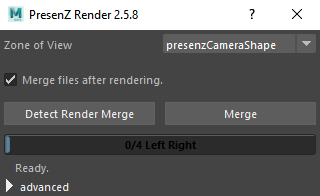
List all the available Zone Of View in your scene and allow the rendering of each individually.
In case you did not set certain settings, such as setting the render engine to Arnold, enabling bucket rendering, or creating a ZOV, The Dialog will prompt you to automatically change these settings.

Creating a Zone Of View
Use the Icon to create a Zone Of View in your scene.

Once a camera is created in your viewport, it should appear like this:

As you can see, the camera is represented by a box ( the Zone Of View ), with a viewer avatar inside it. The viewer avatar represents the VR user; its orientation corresponds to the default orientation of the VR user. This UI allows you to visualize the effects of changing parameters, like the size of the zone of view, the render scale, or the viewer's IPD.
Zone Of View parameters
The PresenZ Camera Parameter section is divided into 6 sections.
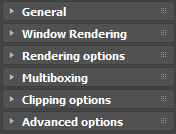
PresenZ enabled: On by default. Uncheck this box to disable the PresenZ render.
Render scale: Default is 1.0. This will change the scale of the scene in VR without having to rescale all objects in the Maya scene.
Render isolated: Only render objects that have been tagged as Isolated with the Tagging Manager.
Zone of View dimensions

Zone of View dimensions: By default, the Zone of View is 1.0m, 1.0m, 0.5m, and the distance to the ground is 1.6m. These can be changed to increase the size of the Zone of View. For more information on the Zone of View, please refer to this section.
Ground Settings

Display ground: On by default. Allows to visualize how far the center of the ZOV will be from the ground in real life for the VR user. Ideally, you want it to match the ground in the 3D scene, so that the VR user will feel like they are standing on the ground and not floating.
Rendering Options

Draft Rendering
Off by default. Enables PresenZ draft rendering mode. This feature allows you to make a quick VR test render. This is helpful to have a sense of your lighting setup, position of the Zone Of View, and the general scale of your scene. Without having to do a full render. But this will not cover all the possible viewing positions inside the ZOV; you will see “undefined” or missing zones with the Draft Rendering enabled, so it is not suitable for production.
Render inside ZOV: Off by default. This enables the rendering of objects inside the ZOV. Unless checked, objects within the ZOV won’t be rendered.
Render isolated: Only render objects that have been tagged as Isolated with the Tagging Manager.
By default, V-Nova PresenZ will render a window as a “stereoscopic poster” displaying what can be seen behind the window. This works great for far-away windows or transparent objects, but for objects located close by to the ZOV, it is recommended to tag them as “glass” in order for V-Nova PresenZ to render them correctly. More information on transparency and glass objects can be found here
Rendering
Output Render Path
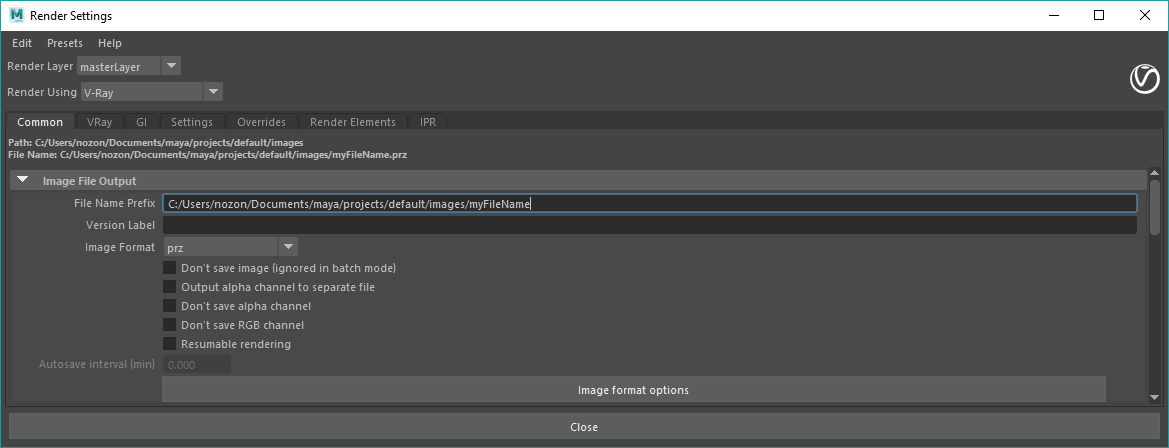
Before rendering, you should specify the exact path to where you want to save the .PRZ image. In the Maya Render Settings menu, go to the Common tab and enter the full file path in the File Name Prefix and select “prz” as the Image Format. An example of a full file path would be: “C:\path\to\renders\yourFileName”.
V-Nova PresenZ will also create a przDetect and przRender folder at that location. These folders are used to store intermediate files generated by the PresenZ two-phase system.
Detecting, rendering and merging
To render your PRZ image, select the PresenZ render button.
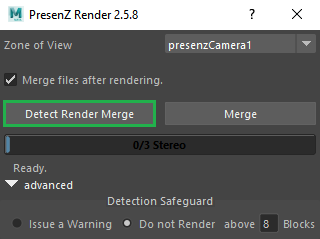
Be sure to have properly set your output location, as explained in the previous section.
Zone of View: allows you to select which Zone of View you are going to render (Since you can have several in your 3D Scene).
Merge files after rendering: On by default. This will automatically start the merger after completing the different phases of the rendering process. Alternatively, you can manually merge your output files through the command line. This is explained in the PresenZ Utility Merger section.
Render button: This button will automatically launch the different PresenZ render phases, one after the other, according to your zov settings. Its name will also change according to your settings. “Detect render merger”, for instance.
Merge button: This button allows you to manually re-merge your .przRender files after they have been rendered.
Progress bar: Depending on the options, the whole PresenZ render will take several phases and possibly passes (for instance, opaque and glass passes). This will show you the progress in those phases/passes.
Detection safeguard: Located in the Advanced section. This is on by default and set to 8 blocks. 8 blocks should be plenty to handle very complex scenes properly set. If the detection phase issues more than 98 blocks, usually it means your scene has complex geometry not tagged as Chaotic. Visit this section to reduce the number of blocks.
Note: The merge button is useful to apply your V-Ray Frame Buffer Color Correction Settings without having to re-render.
Note: Near the progress bar a number will indicate how many passes will be executed for your render; this number can change. For a normal render, this number will be 3: a detection pass, a render pass, and the merge. As another example, if you have decided to render in “opaque and glass” mode, the whole PresenZ render will take more passes than a standard render. The total number of passes will be 5: one detection pass and render pass for the opaque objects, one detection and render pass for the transparent objects, and a final merge.
Last updated
Was this helpful?