# Set up a Live channel

## **Live channels interface**

To Encode a live channel in the platform:

* Go to **Encode Jobs --> Live**. The **Live channels channel list** is displayed.

![Live Channels Channel List](https://content.gitbook.com/content/xdWpFEYGHZ7YDDpkZo7J/blobs/qm1EgEvqH1fXx23KCSbl/live_dashboard.PNG)

&#x20;This page lists all of the encoded Live Channels and displays the details of the following:

* **Stream ID:** The **Stream ID** can be sorted in ascending or descending order.&#x20;
* **Channel name:** Name of the Live Channel.
* **Content ID:** ID assigned by the platform when the Live Channel is created.
* **Copy manifest URL:** Manifest URL that is associated with the Live Channel.
* **Profiles:** Number of profiles associated with the Live Channel.
* **User:** Specifies the user name of the account that created or last edited the channel.
* **Status:** Specifies if the Live Channel is enabled or disabled.
* **Edit:** Opens the channel to enable editing of its parameters or to view realtime information about the status of an enabled active channel.

A user can:

* Encode a Live Channel and live stream.
* Edit an existing Live Channel.
* Delete an existing Live Channel.

## **Creating a new Live channel**

To create a new **Live channel**:

&#x20;Click the **Start a new Live stream** icon <img src="https://content.gitbook.com/content/xdWpFEYGHZ7YDDpkZo7J/blobs/HL5GfjO4DBLzNus82Cp6/new_+.png" alt="" data-size="line">. The **Live stream configuration** page is displayed.

The **Live Job** page includes the following tabs, all of which contain configuration parameters:

* **General**
* **Input**
* **Profile**
* **Base codec**
* **LCEVC**
* **Extra**

The settings in each of the tabs are described in the following sections.

### General tab

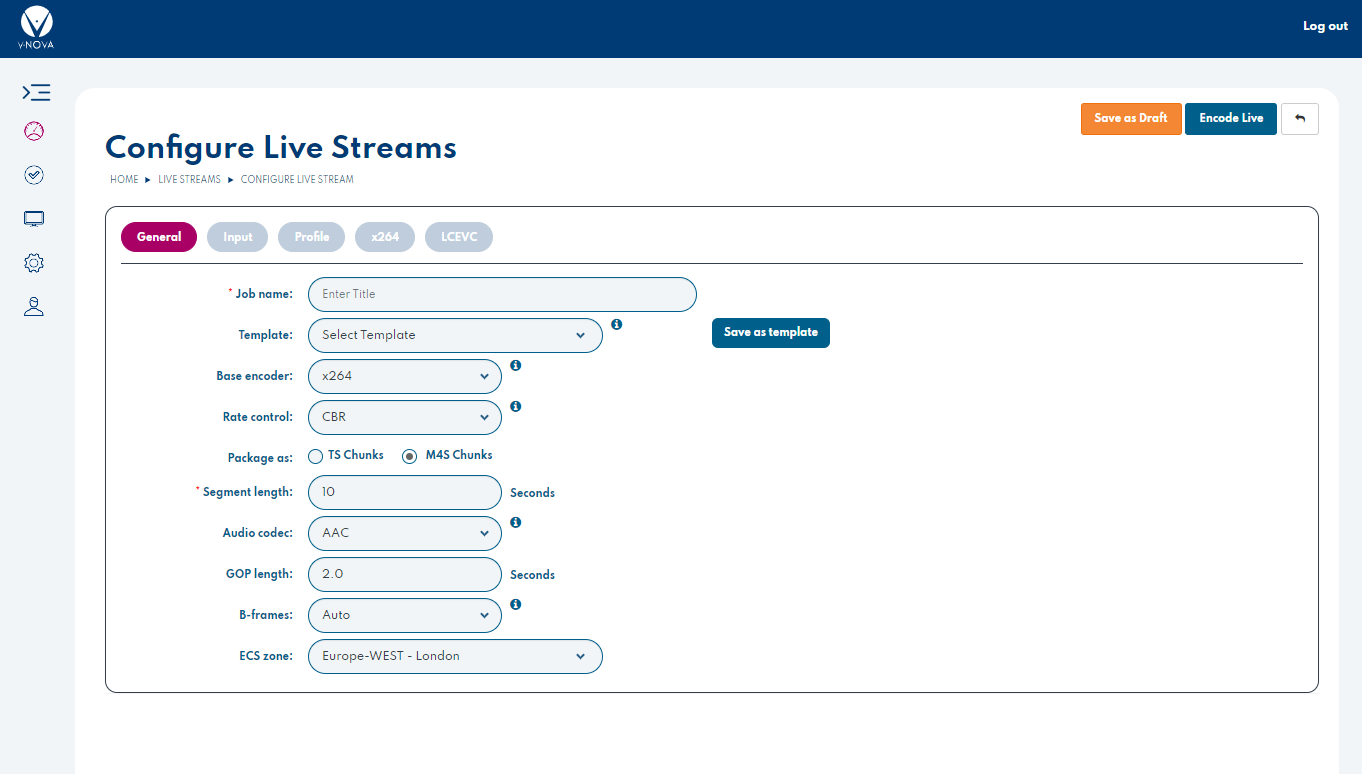
The **General** tab specifies Live Channel set-up information. Most fields require input, and are indicated as mandatory by red asterisks.
<figure><img src="https://content.gitbook.com/content/xdWpFEYGHZ7YDDpkZo7J/blobs/8IbnTgqb55ynl2TvkBIH/LIVE_general_2.PNG" alt=""><figcaption></figcaption></figure>

* **Job name (mandatory):** Enter a title for the Live Channel.
* **Template:** Select an encoder job configuration template&#x20;
* **Base encoder:** Select base encoder to (optionally) be enhanced by LCEVC
* **Rate control:** Select the rate-control mode for the job (either CBR of pCRF)
* **Package as:** TS Chunks (Transport Stream) or M4S Chunks (Mp4 chunks)
* **Segment length (mandatory):** Duration in seconds of packaged segments. *Default value is **10**.*
* **Audio:** Define Audio codec to be used. *Default is AAC for H264/H265, Vorbis for VPX + AV1.*
* **GOP:** Define GOP (Group-of-pictures) length in seconds. *Default is **2.0** seconds.*
* **B-frames**: Define number of B-frames to be used (if relevant). *Default is **Auto**.*

### Input

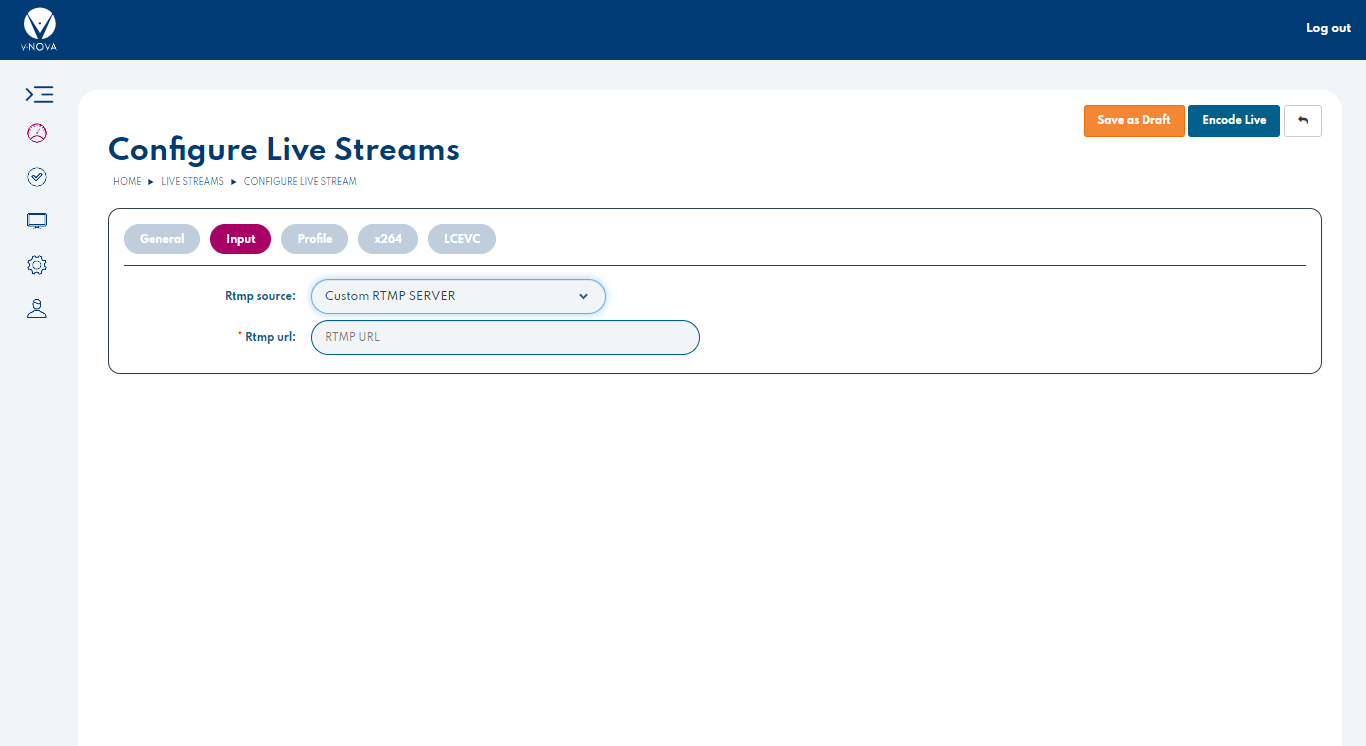
This tab allows you to specify the input URL of your live source content in RTMP format. This can be pulled from the V-Nova RTMP server or pushed to with a custom generated URL.

<figure><img src="https://content.gitbook.com/content/xdWpFEYGHZ7YDDpkZo7J/blobs/nNmkTLFYNA8Fv2YNC3ne/live_source_2.PNG" alt=""><figcaption></figcaption></figure>

* **Type of RTMP (Real-time Messaging Protocol) Source (mandatory):** Select the RTMP type from the drop-down.
  * **V-NOVA RTMP SERVER:** If the V-NOVA RTMP SERVER is selected, then the LCEVC platform automatically generates the RTMP URL.
  * **CUSTOM RTMP SERVER:** If the CUSTOM RTMP SERVER is selected, then the URL must be specified.
* **Choose Zone for RTMP endpoint (mandatory for V-Nova RTMP server):** Select the Zone for the RTMP endpoint from the drop-down.
  * **Europe - London**
  * **US - East-North Virginia**
* **RTMP URL (mandatory for custom RTMP server):** Enter a valid URL in the text-box.

### Profile

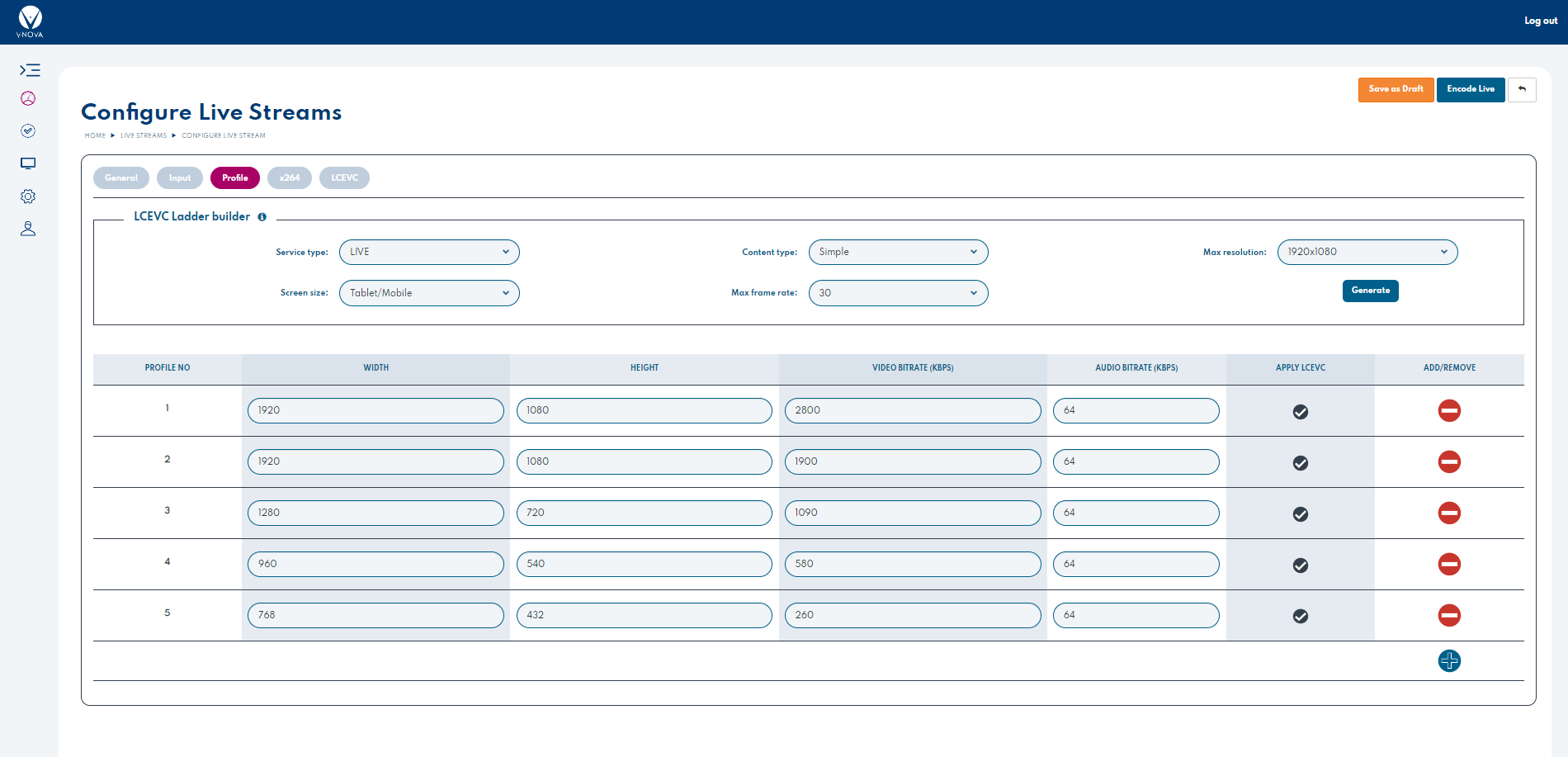
The profile tab is the same as used in [VOD jobs](https://docs.v-nova.com/v-nova/v-nova-platform/encoding/platform-api), a user must define all fields and profiles, or use the LCEVC Ladder builder. The platform will automatically create a cloud server instance with the required processing capacity to encode the profiles and codec parameters chosen.&#x20;

<figure><img src="https://content.gitbook.com/content/xdWpFEYGHZ7YDDpkZo7J/blobs/EBEk0NkSBSSuvhm1WvIN/live_profiles_2.PNG" alt=""><figcaption></figcaption></figure>

#### Base parameter tab

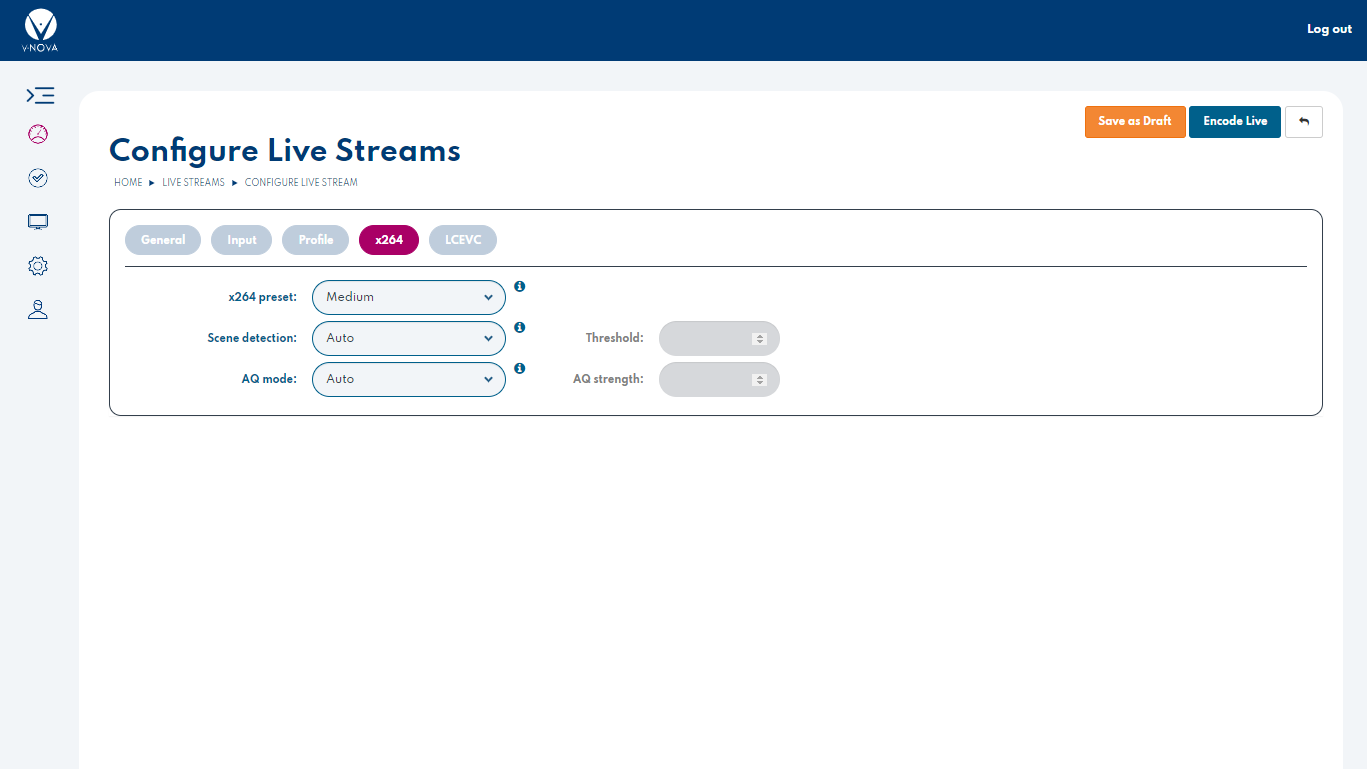
Similar to the VOD encoding parameters for x264/x265, the live x264/x265 encoding has the same set of parameters. The tab title and given parameters will change depending on the base encoder selected in the **General** tab. Settings will be left in default if not specified by the **Template** or **Ladder Builder**.&#x20;

<figure><img src="https://content.gitbook.com/content/xdWpFEYGHZ7YDDpkZo7J/blobs/RrmuibMC8MuQ6NlxiRmT/live_base_2.PNG" alt=""><figcaption></figcaption></figure>

This tab enables adjustment of the common parameters for the base encoder that LCEVC is enhancing. If you require more, please make a request to enable the advanced parameter tab with a support query through the support link on the platform.

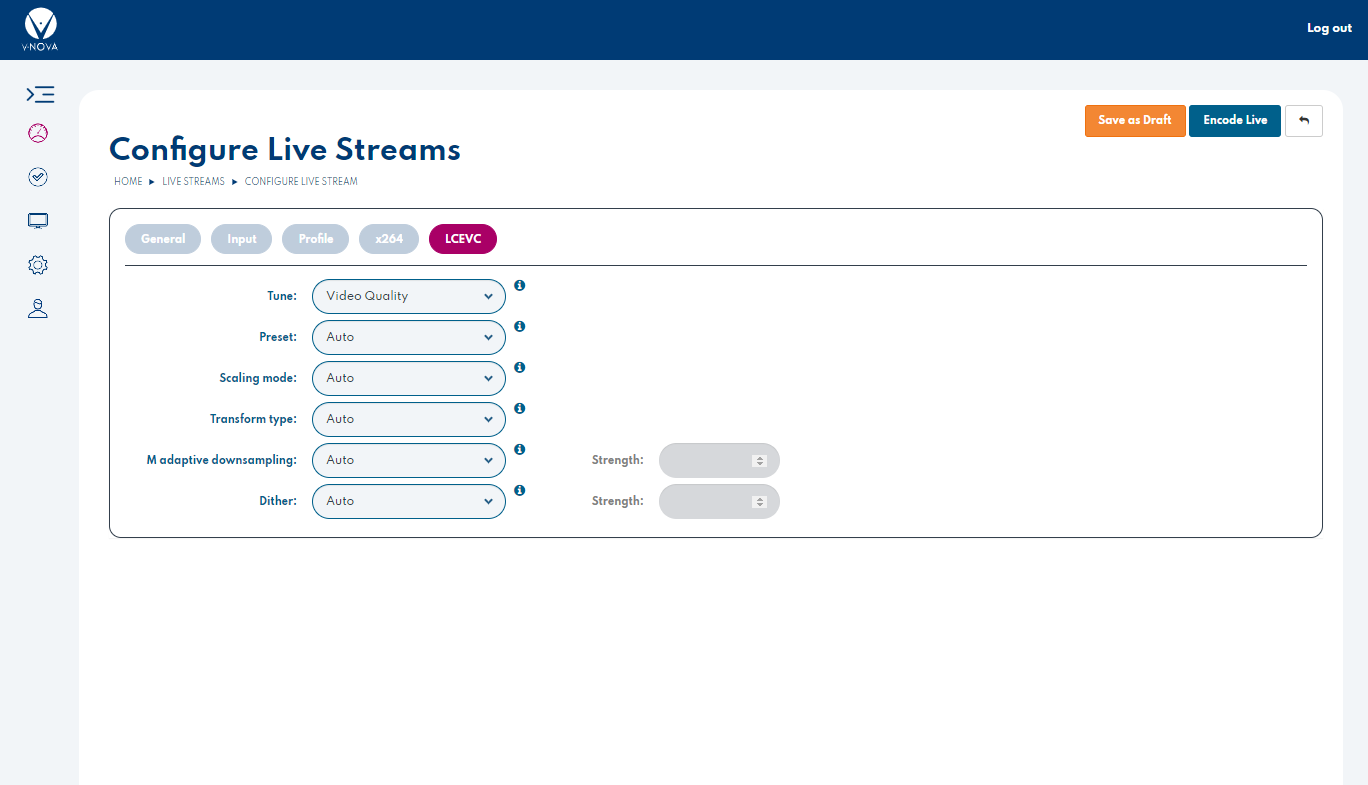
#### LCEVC parameter tab

This tab controls the LCEVC tools. The default value for most of them is "Auto" which allows the LCEVC encoder to intelligently determine the best value depending on the other parameters of your encode job.

<figure><img src="https://content.gitbook.com/content/xdWpFEYGHZ7YDDpkZo7J/blobs/4IzXSwUXNOaPCd7ZCdth/live_lcevc_2.PNG" alt=""><figcaption></figcaption></figure>

#### Extra tab for additional parameters

*Only avalaible to those with advanced encoding parameteres enabled.* \
Parameters should be entered as if raw into a FFmpeg command line. LCEVC's EIL parameters must have **';'** after each one, including the final command specified.&#x20;

![Live Job - Extra tab for H264/265](https://content.gitbook.com/content/xdWpFEYGHZ7YDDpkZo7J/blobs/3ELHAocc57PEpmE4nzLB/live_extra.PNG)

#### Start live encoding

Once you have set all your parameters, you can either save as a draft or start the job by pressing 'Encode Live'. Once this is pressed it will go into a queue to launch an instance upon which to encode the channel.

<figure><img src="https://content.gitbook.com/content/xdWpFEYGHZ7YDDpkZo7J/blobs/U5m1BrW2evcaa4MgJKLN/live_save.PNG" alt=""><figcaption><p>Save Draft or Encode Live Button</p></figcaption></figure>

Once either button is pressed you will return to the Live dashboard where you can monitor the status of the job.&#x20;

## **Modifying an existing Live channel**

To modify an existing Live channel:

Click the **Edit** icon, you will see the details of options selected before. Additionally a User is presented with a statistics page to see the health of the instance.

![Live Statistics Page](https://content.gitbook.com/content/xdWpFEYGHZ7YDDpkZo7J/blobs/5QRTt6YMeKVp7cn6ViOT/live_statistics_2.PNG)

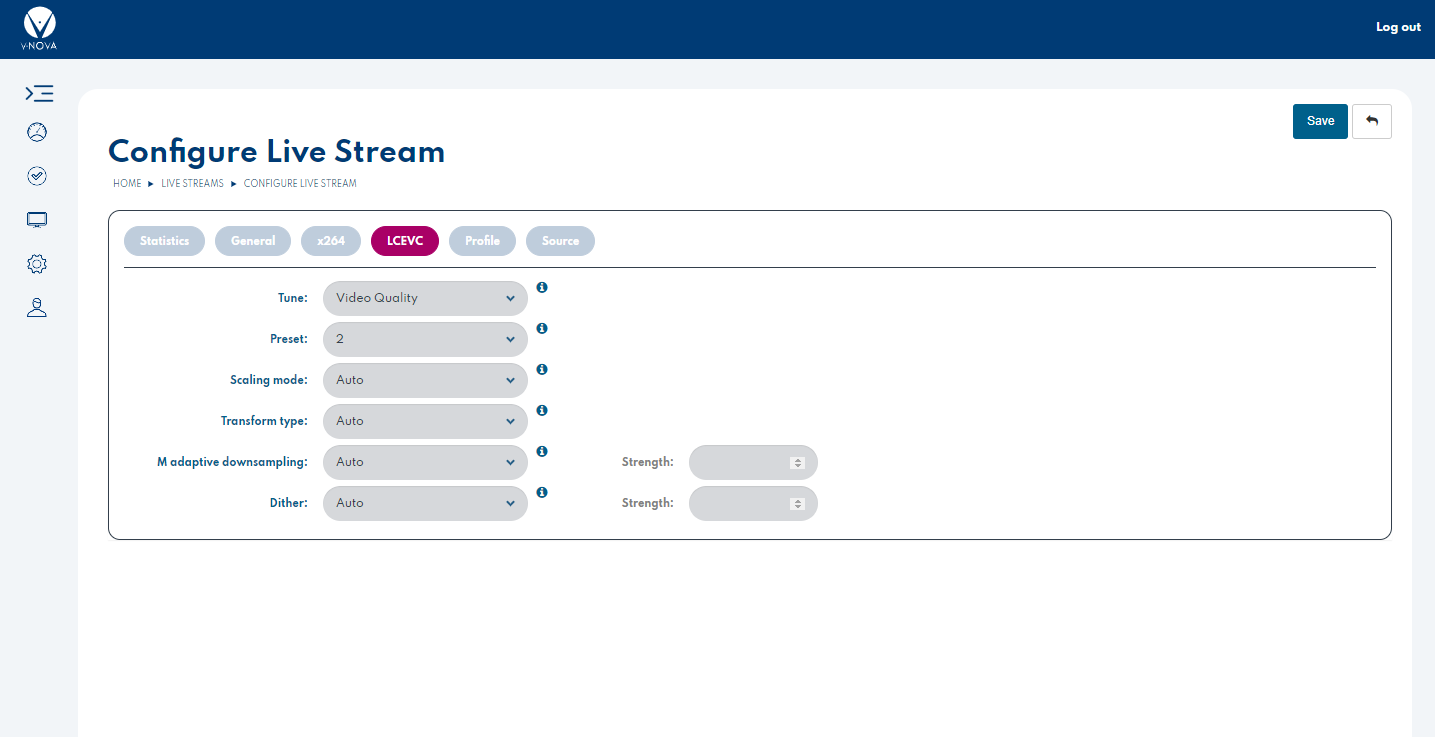
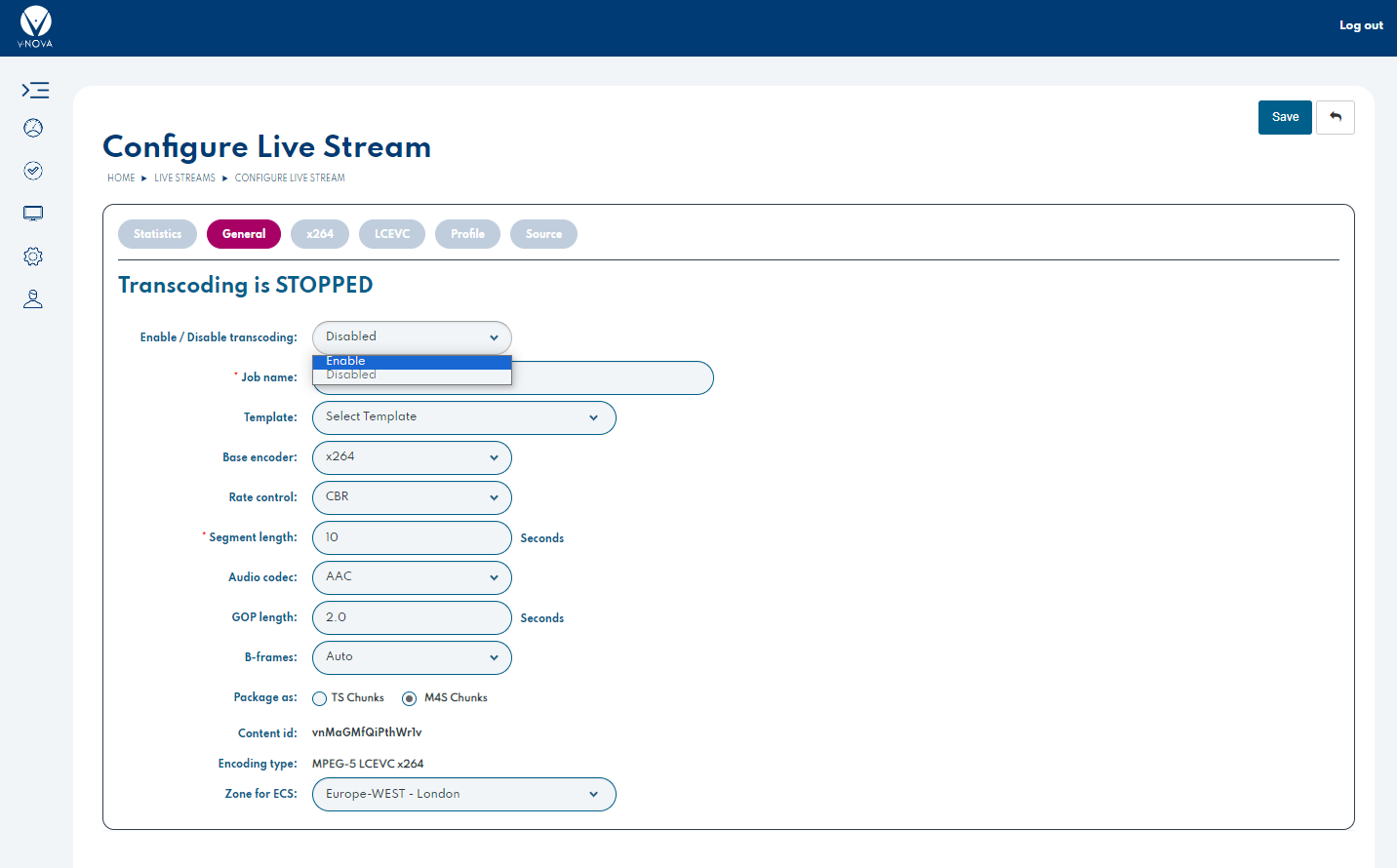
In order to modifying a Live channel you must first disable the job from the General tab. If the channel is active, the majority of controls will be disabled.

<figure><img src="https://content.gitbook.com/content/xdWpFEYGHZ7YDDpkZo7J/blobs/SrvCz5O1q2GbiZBMHyj8/live_settings_running.PNG" alt=""><figcaption><p>Locked fields as job is running</p></figcaption></figure>

Any settings or fields can be updated and saved. Once all changes have been made you can Enable the Transcoding once again from the General tab.

<figure><img src="https://content.gitbook.com/content/xdWpFEYGHZ7YDDpkZo7J/blobs/gIaXLC4EW8i3I7um6vBJ/live_reenable.PNG" alt=""><figcaption><p>General tab to re-enable a stream</p></figcaption></figure>

### **Deleting an existing Live channel**

To delete an existing Live channel:

Click on the check-boxes for any existing Live channels that need to be deleted, and click on the “Delete” icon. A confirmation dialogue box will be shown. Click on “OK” to delete or click on “cancel” to avoid deletion. Channels must be disabled before they can be deleted.

![](https://content.gitbook.com/content/xdWpFEYGHZ7YDDpkZo7J/blobs/oZzhsF0Hs8rRy0BIKgxl/live_delete.PNG)