> For the complete documentation index, see [llms.txt](https://docs.v-nova.com/technologies/llms.txt). Markdown versions of documentation pages are available by appending `.md` to page URLs; this page is available as [Markdown](https://docs.v-nova.com/technologies/v-nova.platform/encoding/platform-api.md).
# Create a VOD encoding Job
This page explains how to use the V-Nova platform to create VOD assets.
## Create a VOD Job
The following sections describe the controls that can be set, to customize a VOD encode to your requirements.
To create a **VOD Job**:
1. Go to either **Dashboard --> Total VOD assets**, or to **Encode Jobs --> VOD**. The **Job List** is displayed
2. Click the **Start a new Job** icon. The **VOD Job** page **Content information** panel is displayed. The **VOD Job content information** panel contains five or six tabs depending on the user level, all of which contain configuration parameters:
* **General**
* **Input**
* **Profiles**
* **Base codec**
* **LCEVC**
* **Advanced** (only when enabled by administrators)
The settings in each of the tabs are described in the following sections.
## **General tab**

'The **General** tab includes the following fields:
* **Title (mandatory):** Enter title
* **Template:** Load a pre-set template
* **Base encoder:** Define base encoder to use
* **Rate control:** Define rate control method to use. *Default is **CBR.***
* **Container:** Select one of the following:
* **Fragmented MP4**
* **TS chunks**
* **M4S** (Live only)
* **Webm** (only for VPX or AV1)
* **Segment length (mandatory):** Duration in seconds of packaged segments. *Default value is **10**.*
* **Audio:** Define Audio codec to be used. *Default is AAC for H264/H265, Vorbis for VPX + AV1.*
* **GOP:** Define GOP (Group-of-pictures) in seconds. *Default is **2.0** seconds.*
* **B-frames**: Define number of B-frames to be used (if relevant). *Default is **Auto**.*
## **Source tab**
One can browse and upload a video source file in a range of supported formats, or provide a public link to the source asset (e.g. from an AWS S3 bucket)

Enter the source information for either of the fields:
* **Source File:** Select a file to upload and encode from or,
* **Link to the Asset:** Enter a publicly accessible link to the desired asset.
* **Select example:** Ready to use demo sources.
Input File requirements:
* File formats accepted: mp4, mov, mxf, avi, yuv\*.
* Source file size must be under 15GB\*\**.*
\* requires advanced encoding options to be enabled on your account. \
\*\* Contact us to enable encoding from larger files.
## **Profiles tab**
### **Overview**
The **Profiles** tab is the place to define the encoding **resolution** & **bitrate** or CRF target, or use the LCEVC Ladder builder provided. **Width, Height, Video bitrate** or CRF and **Audio Bitrate** are **mandatory** fields.
Each **Profile** is part of the same adaptive streaming ladder, which is a range of different resolutions and bitrates that enable the player to dynamically adapt to the available internet bandwidth.
Upon selecting an existing preset, the encoding type and rate-control fields are automatically updated from the **General** tab.
#### Profiles
A **Profile** includes the following settings:
* **Profile No:** The number of the **Profile** assigned to the **Preset's profile**. A **Profile number** is assigned in the order in which the **Profile** is created.
* **Width:** Width of the video, in pixels, set for the **Profile** which can be edited as required.
* **Height:** Height of the video, in lines, set for the **Profile** which can be edited as required.
* **Video bitrate:** Video bitrate set for the **Profile** in kbps which can be edited as required.
* **Audio bitrate:** Audio Bitrate set for the **Profile** in kbps which can be edited as required.
* **Apply LCEVC:**
* If enabled, then **LCEVC** is applied to the profile.
* If disabled, then **LCEVC** is not applied to the profile and it will use the base codec natively.
A new **Profile** can be added as follows:
* In the **Add/Remove** column, click the **Add profile** icon . A new row is added, populated with the settings from the previous row, and assigned the next available **Profile number**. **Profile numbers** are not reused. If a **Profile** had been removed, then its number is no longer available. As such, the newly assigned number may skip one or more numbers.
* Edit the **Width**, **Height**, **Video bitrate**, **Audio bitrate** fields, and enable or disable Apply **LCEVC**.
To remove a **Profile**:
* Click the **Remove profile** icon associated with the **Profile** that is to be removed.

The fields are described in the following sections.
### LCEVC ladder builder
#### Using LCEVC ladder builder
The LCEVC ladder builder is based on extensive video quality analysis for a range of use cases and content types and aims to guide you to profile settings that will deliver strong results. It is important to change resolution and bitrate settings when adopting LCEVC enhancement to achieve the best results. Please refer to [Best Practices](https://docs.v-nova.com/v-nova/lcevc/lcevc-best-practices) for further details.
To use the builder, enter the details from each drop down menu that best represent your use case and press generate, the tool will automatically generate all of the profiles.
LCEVC Ladder Builder
### Templates
#### Selecting a template
Each **Template** provides typical recommended parameters to encode an asset. A template contains all of the settings associated with a job except for the source specific and its title. To select a built-in **Template**:
* From the **Template** dropdown, select a option. The **Profiles** associated with the selected **Templates** are displayed:

Custom templates can also be saved at any time by selecting **Save as template** on the **General** tab for your job if you would like to recall those settings immediately for future jobs.
### **Base parameter tab**
The tab title and given parameters will change depending on the base encoder selected in the **General** tab. Settings will be left in default if not specified by the **Template** or **Ladder Builder**.

This area in the UI enables adjustement of the common parameters for the base encoder that LCEVC is enhancing. If you require more please contact to enable the advanced parameter tab.
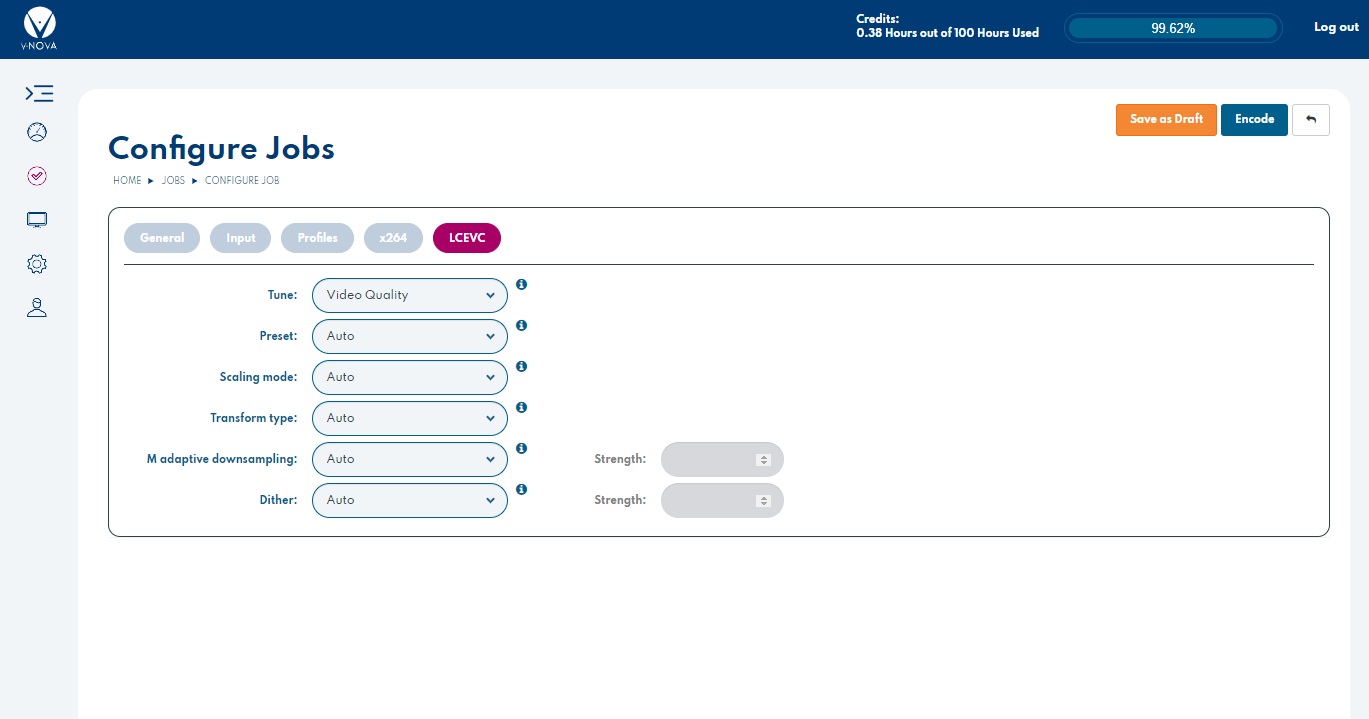
### **LCEVC parameter tab**
This tab is to control the LCEVC tools. Tools are best left in default 'Auto'.
**LCEVC settings**
* [**LCEVC tune**](https://docs.v-nova.com/v-nova/lcevc/reference-applications/ffmpeg#lcevc-tuning)
* Video Quality
* Animation
* VMAF
* SSIM
* PSNR
* [**LCEVC preset**](https://docs.v-nova.com/v-nova/lcevc/reference-applications/ffmpeg#lcevc-preset)
* 0-5
* [**Scaling mode**](https://docs.v-nova.com/v-nova/lcevc/reference-applications/ffmpeg#v-nova-lcevc-scaling-mode)
* Auto
* 2D: Force 2D scaling thoughout profiles
* 1D: Force 1D scaling throughout profiles
* **Transform Type**
* **Auto:** This setting is determined intelligently by the encoder based on the LCEVC **Tune** setting.
* Double Directional
* Directional
* [**M Adaptive Downsampling**](https://docs.v-nova.com/v-nova/lcevc/reference-applications/ffmpeg#m-adaptive-downsampling)
* **Modes:**
* **Auto:** Automatic **M Adaptive Downsampling** is applied.
* **Replace:**
* **Seperate:**
* **Off:** Force off.
* [**Strength**](https://docs.v-nova.com/v-nova/lcevc/reference-applications/ffmpeg#m_hf_strength)**:** Set via spinner or direct entry.
* If **Mode** is set to **Replace or Separate**, then is grayed out.
* If **Mode** is set to **Replace or Separate,** then **Range: 0 - 0.5**.
* [**Dither**](https://docs.v-nova.com/v-nova/lcevc/reference-applications/ffmpeg#dithering)
* **Apply dither**
* **Auto:** Automatic **Dithering** is applied and is dictated by the LCEVC tuning employed.
* **Force On:** Dithering is determined by user-set **Strength** setting.
* **Strength**
* If **Apply Dither** is set to **Auto**, then Is grayed out.
* If **Apply Dither** is set to **Force On**, then **Range: 1 - 10**.
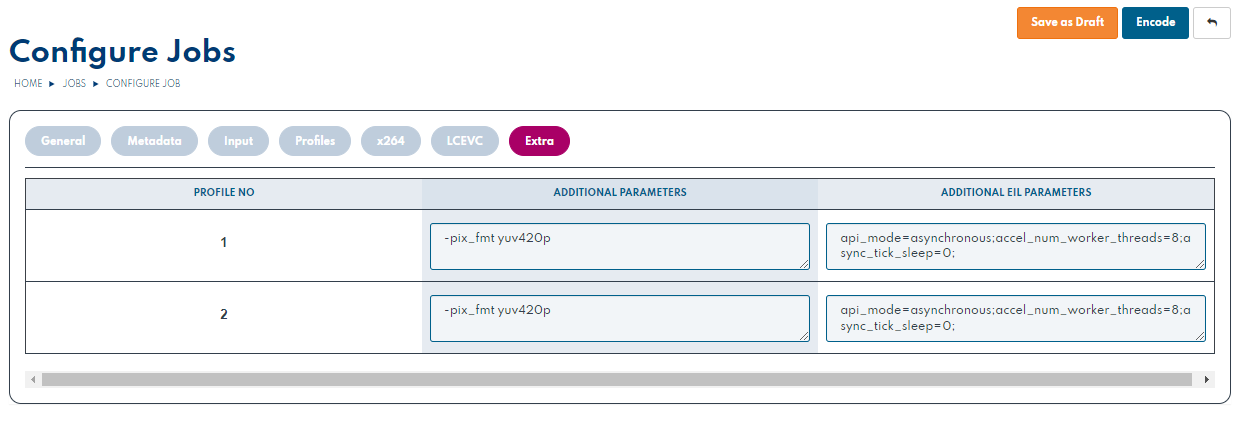
### **Extra tab**
This tab is avaliable to accounts or users upon request. Parameters should be entered as if raw into a FFmpeg command line. LCEVC's EIL parameters must have **';'** after each one, including the final.
## Performing the encode
To perform the encode and view the resulting content, proceed to [Performing the encode and viewing content](/technologies/v-nova.platform/encoding/performing-the-encode-and-viewing-content.md).
---
# Agent Instructions
This documentation is published with GitBook. GitBook is the documentation platform designed so that both humans and AI agents can read, navigate, and reason over technical content effectively. Learn more at gitbook.com.
## Querying This Documentation
If you need additional information that is not directly available in this page, you can query the documentation by asking a question.
Perform an HTTP GET request on the following URL with the `ask` and `goal` query parameters:
```
GET https://docs.v-nova.com/technologies/v-nova.platform/encoding/platform-api.md?ask=&goal=
```
`ask` is the immediate question: it should be specific, self-contained, and written in natural language.
`goal` is what the user is ultimately trying to achieve, the reason they need the answer. Sharing it helps GitBook give you a better, more relevant answer. A goal is most helpful when it describes the outcome the user wants rather than restating the question. For example, with `ask=how do I create an API token`, a goal like `automate deployments from our CI pipeline` lets GitBook tailor the answer to that use case.
The response will contain a direct answer to the question and relevant excerpts and sources from the documentation.
Use this mechanism when the answer is not explicitly present in the current page, you need clarification or additional context, or you want to retrieve related documentation sections.

 . The **VOD Job** page **Content information** panel is displayed. The **VOD Job content information** panel contains five or six tabs depending on the user level, all of which contain configuration parameters:
* **General**
* **Input**
* **Profiles**
* **Base codec**
* **LCEVC**
* **Advanced** (only when enabled by administrators)
The settings in each of the tabs are described in the following sections.
## **General tab**

'The **General** tab includes the following fields:
* **Title (mandatory):** Enter title
* **Template:** Load a pre-set template
* **Base encoder:** Define base encoder to use
* **Rate control:** Define rate control method to use. *Default is **CBR.***
* **Container:** Select one of the following:
* **Fragmented MP4**
* **TS chunks**
* **M4S** (Live only)
* **Webm** (only for VPX or AV1)
* **Segment length (mandatory):** Duration in seconds of packaged segments. *Default value is **10**.*
* **Audio:** Define Audio codec to be used. *Default is AAC for H264/H265, Vorbis for VPX + AV1.*
* **GOP:** Define GOP (Group-of-pictures) in seconds. *Default is **2.0** seconds.*
* **B-frames**: Define number of B-frames to be used (if relevant). *Default is **Auto**.*
## **Source tab**
One can browse and upload a video source file in a range of supported formats, or provide a public link to the source asset (e.g. from an AWS S3 bucket)

Enter the source information for either of the fields:
* **Source File:** Select a file to upload and encode from or,
* **Link to the Asset:** Enter a publicly accessible link to the desired asset.
* **Select example:** Ready to use demo sources.
Input File requirements:
* File formats accepted: mp4, mov, mxf, avi, yuv\*.
* Source file size must be under 15GB\*\**.*
\* requires advanced encoding options to be enabled on your account. \
\*\* Contact us to enable encoding from larger files.
## **Profiles tab**
### **Overview**
The **Profiles** tab is the place to define the encoding **resolution** & **bitrate** or CRF target, or use the LCEVC Ladder builder provided. **Width, Height, Video bitrate** or CRF and **Audio Bitrate** are **mandatory** fields.
Each **Profile** is part of the same adaptive streaming ladder, which is a range of different resolutions and bitrates that enable the player to dynamically adapt to the available internet bandwidth.
Upon selecting an existing preset, the encoding type and rate-control fields are automatically updated from the **General** tab.
#### Profiles
A **Profile** includes the following settings:
* **Profile No:** The number of the **Profile** assigned to the **Preset's profile**. A **Profile number** is assigned in the order in which the **Profile** is created.
* **Width:** Width of the video, in pixels, set for the **Profile** which can be edited as required.
* **Height:** Height of the video, in lines, set for the **Profile** which can be edited as required.
* **Video bitrate:** Video bitrate set for the **Profile** in kbps which can be edited as required.
* **Audio bitrate:** Audio Bitrate set for the **Profile** in kbps which can be edited as required.
* **Apply LCEVC:**
* If enabled, then **LCEVC** is applied to the profile.
* If disabled, then **LCEVC** is not applied to the profile and it will use the base codec natively.
A new **Profile** can be added as follows:
* In the **Add/Remove** column, click the **Add profile** icon
. The **VOD Job** page **Content information** panel is displayed. The **VOD Job content information** panel contains five or six tabs depending on the user level, all of which contain configuration parameters:
* **General**
* **Input**
* **Profiles**
* **Base codec**
* **LCEVC**
* **Advanced** (only when enabled by administrators)
The settings in each of the tabs are described in the following sections.
## **General tab**

'The **General** tab includes the following fields:
* **Title (mandatory):** Enter title
* **Template:** Load a pre-set template
* **Base encoder:** Define base encoder to use
* **Rate control:** Define rate control method to use. *Default is **CBR.***
* **Container:** Select one of the following:
* **Fragmented MP4**
* **TS chunks**
* **M4S** (Live only)
* **Webm** (only for VPX or AV1)
* **Segment length (mandatory):** Duration in seconds of packaged segments. *Default value is **10**.*
* **Audio:** Define Audio codec to be used. *Default is AAC for H264/H265, Vorbis for VPX + AV1.*
* **GOP:** Define GOP (Group-of-pictures) in seconds. *Default is **2.0** seconds.*
* **B-frames**: Define number of B-frames to be used (if relevant). *Default is **Auto**.*
## **Source tab**
One can browse and upload a video source file in a range of supported formats, or provide a public link to the source asset (e.g. from an AWS S3 bucket)

Enter the source information for either of the fields:
* **Source File:** Select a file to upload and encode from or,
* **Link to the Asset:** Enter a publicly accessible link to the desired asset.
* **Select example:** Ready to use demo sources.
Input File requirements:
* File formats accepted: mp4, mov, mxf, avi, yuv\*.
* Source file size must be under 15GB\*\**.*
\* requires advanced encoding options to be enabled on your account. \
\*\* Contact us to enable encoding from larger files.
## **Profiles tab**
### **Overview**
The **Profiles** tab is the place to define the encoding **resolution** & **bitrate** or CRF target, or use the LCEVC Ladder builder provided. **Width, Height, Video bitrate** or CRF and **Audio Bitrate** are **mandatory** fields.
Each **Profile** is part of the same adaptive streaming ladder, which is a range of different resolutions and bitrates that enable the player to dynamically adapt to the available internet bandwidth.
Upon selecting an existing preset, the encoding type and rate-control fields are automatically updated from the **General** tab.
#### Profiles
A **Profile** includes the following settings:
* **Profile No:** The number of the **Profile** assigned to the **Preset's profile**. A **Profile number** is assigned in the order in which the **Profile** is created.
* **Width:** Width of the video, in pixels, set for the **Profile** which can be edited as required.
* **Height:** Height of the video, in lines, set for the **Profile** which can be edited as required.
* **Video bitrate:** Video bitrate set for the **Profile** in kbps which can be edited as required.
* **Audio bitrate:** Audio Bitrate set for the **Profile** in kbps which can be edited as required.
* **Apply LCEVC:**
* If enabled, then **LCEVC** is applied to the profile.
* If disabled, then **LCEVC** is not applied to the profile and it will use the base codec natively.
A new **Profile** can be added as follows:
* In the **Add/Remove** column, click the **Add profile** icon  associated with the **Profile** that is to be removed.

The fields are described in the following sections.
### LCEVC ladder builder
#### Using LCEVC ladder builder
The LCEVC ladder builder is based on extensive video quality analysis for a range of use cases and content types and aims to guide you to profile settings that will deliver strong results. It is important to change resolution and bitrate settings when adopting LCEVC enhancement to achieve the best results. Please refer to [Best Practices](https://docs.v-nova.com/v-nova/lcevc/lcevc-best-practices) for further details.
To use the builder, enter the details from each drop down menu that best represent your use case and press generate, the tool will automatically generate all of the profiles.
associated with the **Profile** that is to be removed.

The fields are described in the following sections.
### LCEVC ladder builder
#### Using LCEVC ladder builder
The LCEVC ladder builder is based on extensive video quality analysis for a range of use cases and content types and aims to guide you to profile settings that will deliver strong results. It is important to change resolution and bitrate settings when adopting LCEVC enhancement to achieve the best results. Please refer to [Best Practices](https://docs.v-nova.com/v-nova/lcevc/lcevc-best-practices) for further details.
To use the builder, enter the details from each drop down menu that best represent your use case and press generate, the tool will automatically generate all of the profiles.